


Notability: AI Note Workspace
4.260.00 Reviews
App Specs
- Version
- 1.4.2
- Updated On
- License
- Free
- Downloads
- 1,000,000+
- Developer
- Ginger Labs
- Categories
- Productivity
- Platform
- Android
Screenshots
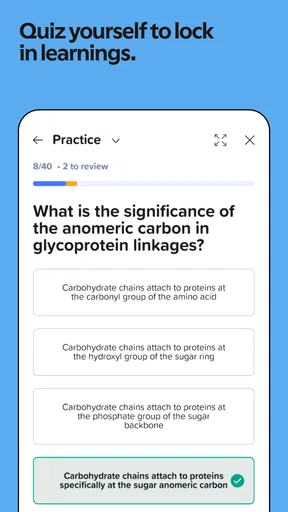
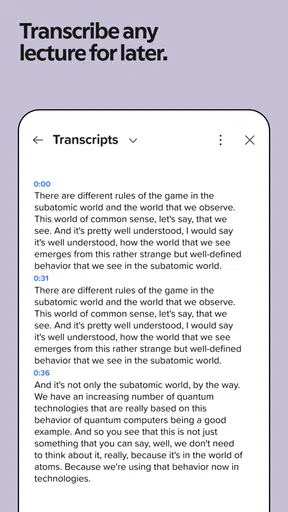
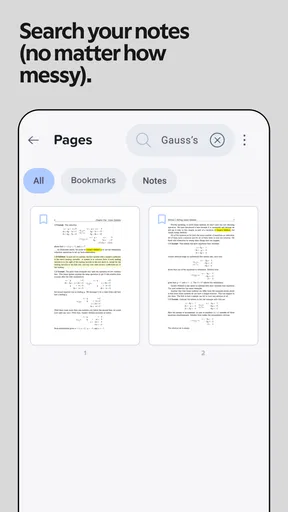
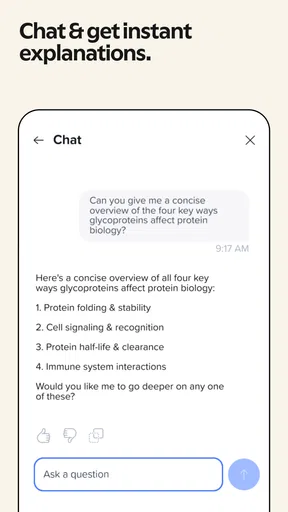
 Analysis by AppCompare
I tend to judge note-taking apps by what happens after the note is created. A blank page is easy to offer; the real test is whether a lecture, PDF, idea, or messy set of reminders can become something I can actually find and use later. Notability: AI Note Workspace is built around that broader job. It is a free productivity app from Ginger Labs, aimed at bringing handwritten or typed notes, recordings, and annotated documents into one workspace.
That combination makes sense for students, but I also found it useful to think of the app as a bridge between incoming information and finished work. You can begin with a lecture, add comments to a reading, mark up a worksheet, and return to the same material when it is time to revise. Its average rating is 4.1 from around 1.7 thousand ratings, and more than a million people have installed it, so it has clearly found an audience beyond a small group of specialist users.
The current release is version 1.1.3, and the app is free to start. Some purchases inside the app range from $2.49 to $99.99 per item, which is important to keep in mind before building your entire study system around features you may later want to unlock. The age rating is Everyone, so the interface is approachable for a wide range of users, although the best experience still depends on having a clear workflow rather than simply collecting pages.
From a lecture or PDF to a usable set of notes
I find that a note becomes much more useful when it carries the source, my reactions, and a clear next step together. In this section, I look at how I would move from a lecture or PDF toward notes I can actually revisit, while keeping the page from turning into a jumble of marks. That same idea also matters when a notebook is used around other people, where a little thought about boundaries can prevent confusion.
Starting with the material in front of you
My preferred way to use Notability is to start with a real source of information instead of creating an empty notebook without a purpose. For example, imagine arriving at a university lecture with a PDF of the slides already available. I would create a note for that class, bring the document into the workspace, and use the pages as the structure for my comments. This is more practical than writing a separate page of notes and trying to remember later which comment belongs to which slide.
The same approach works for a work meeting, a training handout, or a long reading assignment. The document becomes the visual anchor, while typed text or handwriting supplies the context. That distinction matters because a note that says “check this later” is not very helpful when it is separated from the paragraph, diagram, or question that caused the reaction in the first place.
I also like the fact that the app does not force every task into a plain text format. Traditional mobile note apps are excellent for quick lists and short reminders, but they can feel awkward when the source is a worksheet or a page full of diagrams. Notability is better suited to material where position matters: circling a label, writing beside a definition, or adding a short explanation directly over a page.
Worth Reading Before You Choose

EA SPORTS FC Mobile 26 Is a Bigger Football Game, but It Takes Time

Flipboard Shows What News Apps Must Do Beyond the Feed

Switching to Android Auto Means Rethinking Your Driving Routine

Google Calendar Makes a Crowded Week Easier to Manage

Ludo King Makes the Most of the Minutes Between Plans

Baby Panda World Brings Quick Play to Modern Phones, but Its Game Library Feels Busy
Capturing information without losing the thread
During a lecture, the most useful habit is to avoid trying to write a perfect transcript. I would use short phrases, arrows, and questions, keeping the note connected to the relevant part of the slide or page. If recording is part of the session, that can provide a second layer of reference when a brief handwritten comment is no longer enough to reconstruct the explanation.
This is where the app’s all-in-one design feels more meaningful than a simple notebook. The input is not just text. It can be a mixture of spoken material, visual source pages, handwriting, and typed clarification. When those elements stay together, reviewing becomes less dependent on memory. I can see what the instructor was discussing, read my immediate reaction, and revisit the wider context from the same note.
There is a trade-off, though. A flexible page can become visually busy very quickly. I found it helpful to reserve a small area for questions and another for follow-up actions instead of scattering them across every page. A consistent visual code also helps: one style for definitions, another for uncertainties, and a separate mark for material that needs to be checked outside the lecture. This is not a flashy feature, but it turns a free-form canvas into something I can navigate later.
Annotating PDFs with a purpose
PDF annotation is most valuable when it changes what I will do with the document afterward. Rather than highlighting every sentence, I would mark only claims that need explanation, examples that clarify a difficult idea, and sections that should become revision prompts. A short note beside a highlighted passage is usually more useful than a page covered in color.
For a study session, I might read a chapter once without marking it, return to add a few focused annotations, and then write a compact summary at the end of the document. That final summary acts as a handoff from the source material to my own understanding. It also makes the note more useful when I open it weeks later and no longer remember why a particular paragraph seemed important.
One less obvious benefit is that annotation can preserve the difference between the author’s words and my interpretation. I can leave the original page intact while adding questions around it, rather than rewriting everything into a new document. That is especially useful when preparing for an exam or reviewing instructions where the exact wording matters.
Turning a session into a reviewable note
After the lecture or reading, I would spend a few minutes cleaning the note while the context is still fresh. This does not mean rewriting every line. It means answering the questions that can be answered immediately, grouping loose thoughts, and adding a short “next step” section. For example, a note might end with three items: revisit one concept, find one supporting example, and ask one question in the next class.
That small cleanup changes the role of the app. It is no longer just a place where information lands; it becomes a staging area for the next action. I found this more reliable than keeping lecture notes in one app, PDFs in a file manager, and follow-up tasks in a separate list. Each individual tool may be good, but the mental cost of moving between them can cause useful details to disappear.
Handoffs between study, work, and everyday tasks
The strongest part of this workflow is the handoff from one stage to another. A lecture becomes a marked-up source. The marked-up source becomes a summary. The summary becomes a revision plan or a question for a teacher. If I use the app for work, a meeting document can become a list of decisions, open issues, and material that needs to be shared with a colleague.
I would not treat the notebook as the final destination for every action, however. A note can hold the background and reasoning, but a deadline or assigned task may belong in a dedicated calendar or task manager. The practical approach is to keep the evidence in Notability and move only the clear action elsewhere. That prevents the notebook from becoming a second, poorly maintained to-do list.
This separation is also useful when collaborating. I can prepare my own annotated material in the app, then use the cleaned-up summary as the portion that another person needs. The handoff is better when I remove private shorthand and unfinished thoughts first. A raw page may make perfect sense to me immediately after a meeting but be confusing to anyone who was not there.
For a student working with a study partner, the same principle applies. The original note can remain detailed, while a later page contains the questions and explanations worth discussing together. This avoids forcing someone else to decode every margin mark. It also makes revision more active: instead of rereading everything, I can work from the questions I created during the first pass.
A realistic everyday workflow
Here is a routine I could realistically follow on a busy day. Before class, I open the relevant note and place the lecture PDF where I can refer to it. During the session, I add brief handwriting or typed phrases beside the appropriate pages and record the parts I know I will need to hear again. Immediately afterward, I add a short summary and mark the concepts that still feel uncertain.
Later that evening, I return to the note rather than starting from scratch. I review the marked sections, listen back to the relevant explanation when necessary, and turn each unresolved point into a question. The following day, those questions guide my textbook reading or discussion with a classmate. At the end of the week, I have a focused revision page instead of a pile of untouched lecture files.
The same pattern works for a professional setting. I could annotate a project brief before a meeting, add decisions during the conversation, and finish with a clearly separated list of responsibilities. The value is not that every stage happens automatically. The value is that the source, my reactions, and the outcome remain close enough that the transition requires less reconstruction.
Where the workflow starts to break
The app is not the right choice for everyone. If I mainly need quick grocery lists, short reminders, or plain text that I can search and edit rapidly, a simpler notes app may be faster. Notability’s strength comes from combining several kinds of material, and that flexibility can feel unnecessary when the task is only to type a sentence and move on.
There is also a learning curve in deciding how to organize a mixed note. Without naming conventions or a repeatable page structure, notebooks can become crowded with half-finished annotations. The app gives me room to work, but it does not remove the need to decide what belongs together. Users who prefer a strict database, spreadsheet, or task-management system may find the open notebook style less precise.
Recording and annotation can also create a false sense of security. Saving everything does not guarantee that I will review it. A long recording paired with dozens of marks may be technically complete but practically difficult to use. I get better results when I capture selectively and finish each session with a summary. The app supports the workflow, but it cannot replace the judgment involved in deciding what matters.
Cost may influence the decision as well. The starting price is free, but in-app purchases are present, with individual items reaching from $2.49 to $99.99. I would begin with the free experience and identify the exact limitation affecting my routine before paying. Someone who only needs occasional PDF comments may not need the same level of access as a student who plans to use the app for every class and revision cycle.
Another consideration is platform habit. If your notes must constantly move into a highly structured office system, a plain document editor may provide a cleaner handoff. If your work depends on complex databases, linked records, or team-wide editing conventions, a dedicated workspace designed for those jobs may be more suitable. Notability is strongest when the original material is visual or audio-supported and when personal review is an important part of the process.
Who will get the most from it
I would recommend it most strongly to students who work from slides, readings, diagrams, and recorded explanations rather than from text alone. It also suits people who annotate training documents, prepare for exams, or need one place to keep the context around a meeting. The app is particularly useful when the question is not simply “Where did I write this?” but “What was I looking at when I wrote it, and what did I intend to do next?”
It is less compelling for someone who wants a minimal note pad with no visual markup, or for a team that needs every item converted into shared tasks and formal project records. Those users may spend more time organizing the notebook than benefiting from it. I would also avoid adopting it as a complete productivity system without deciding where deadlines, collaboration, and long-term archives will live.
My conclusion after following the whole process
Notability: AI Note Workspace makes the most sense when I treat it as a complete path from source material to understanding. Bringing in a PDF, adding focused comments, keeping a recording beside the page, and ending with a usable summary is a coherent experience. The result is more valuable than a collection of isolated notes because each stage preserves enough context for the next one.
Its limitations are tied to that same flexibility. Pages can become untidy, review requires discipline, and the free starting point may not cover every long-term need. Still, Ginger Labs has created a productivity app that feels purpose-built for people whose work is visual, spoken, and handwritten at the same time. If that describes your study or workday, I think it is worth trying before choosing a simpler alternative.
My practical advice is to test one complete workflow, not just one blank page. Use a real PDF or lecture, add only the information you will genuinely revisit, finish with a short summary, and see whether the next handoff becomes easier. If it does, the app is doing something useful for you. If the note still feels like a storage bin after that test, a more structured or more minimal tool will probably be the better choice.
Pros
- Excellent handwriting and drawing tools with smooth Apple Pencil support.
- Audio recording syncs with notes
- making lectures easier to review.
- Powerful PDF annotation and document import options.
- Customizable templates help organize classes
- meetings
- and projects.
- iCloud syncing keeps notes available across supported Apple devices.
Cons
- Many advanced features require a paid subscription.
- The best experience is limited to Apple devices and platforms.
- Large audio recordings and PDFs can consume considerable storage.
- The interface may feel overwhelming for first-time note-taking app users.
- Some AI features may require an internet connection and account access.
FAQs for Notability: AI Note Workspace
What is Notability: AI Note Workspace used for?
Notability: AI Note Workspace is a digital note-taking and productivity app designed for students, professionals, and anyone who wants to organize information electronically. It combines typed notes, handwriting, sketches, PDF annotation, audio recording, and document organization in one workspace. Its AI features may also help with tasks such as summarizing content, improving organization, or reviewing notes, depending on the version and subscription available on your device.
Can I use Notability without an internet connection?
Yes, many of Notability’s core functions can be used offline after the app and any required content have been installed. You can generally create notes, write by hand, type, draw, and annotate downloaded documents without an active connection. However, cloud synchronization, sharing, backups, and some AI-powered features may require internet access. It is also important to allow synchronization to finish before switching devices or deleting local files.
Is Notability: AI Note Workspace free to download?
Notability can typically be downloaded at no initial cost, but access to advanced tools may depend on the plan offered in your region. Free users may receive limits on editing, templates, storage, recordings, or AI functions, while a subscription can unlock additional features. Before confirming a purchase, check the current App Store or Google Play listing carefully for pricing, renewal terms, trial conditions, and available cancellation options.
Does Notability support handwriting, PDFs, and audio recordings?
Yes, these are among the main reasons people choose Notability. The app is designed for handwritten notes, typed text, diagrams, and PDF markup, making it useful for lectures, meetings, study materials, and forms. Audio recording is also available in supported versions and can be connected to note-taking sessions. Compatibility and certain recording or editing capabilities may vary according to the platform, app version, and subscription.
How private and secure are my notes in Notability?
Your notes are stored and synchronized according to Notability’s account, cloud, and backup settings, so you should review those options before importing sensitive documents. The app may handle information such as note content, recordings, documents, and AI requests when you use connected services. Avoid placing confidential material into optional AI tools unless you understand their data practices, and protect your account with a strong password and device security.


